
MENU
File Manager
File Manager is where images, documents, and videos that will be used in the website are saved.
How to Add and Delete Files
Open
1. Click the File Manager Icon
Open
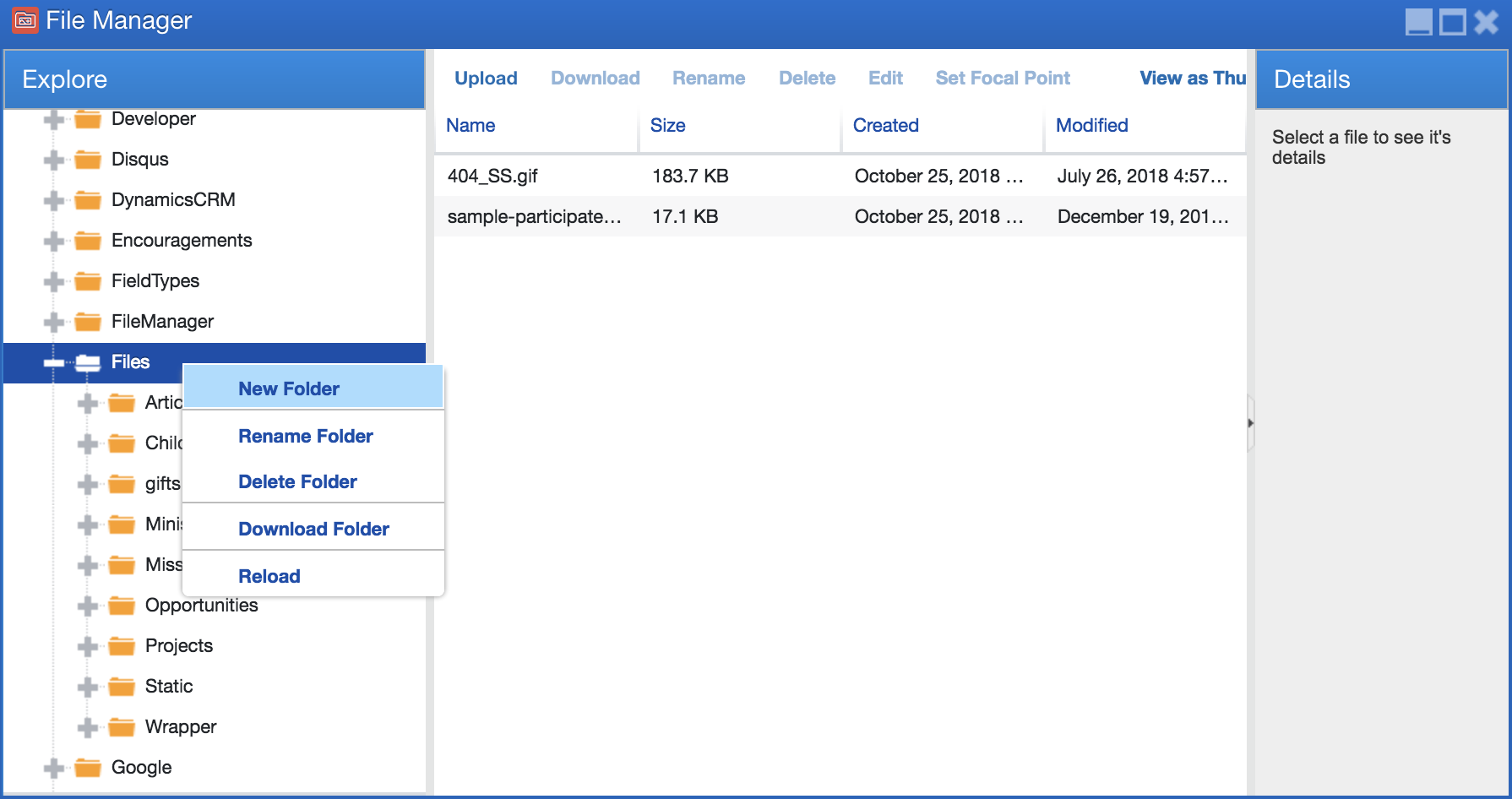
2. Look for the folder named ‘Files’ or Create a new folder for your content
You can save a file from this level or you can also expand this folder to show sub-folders inside ‘Files’. You can also add new folders inside the ‘Files’ folder by right-clicking on it and clicking ‘New Folder’.
Open
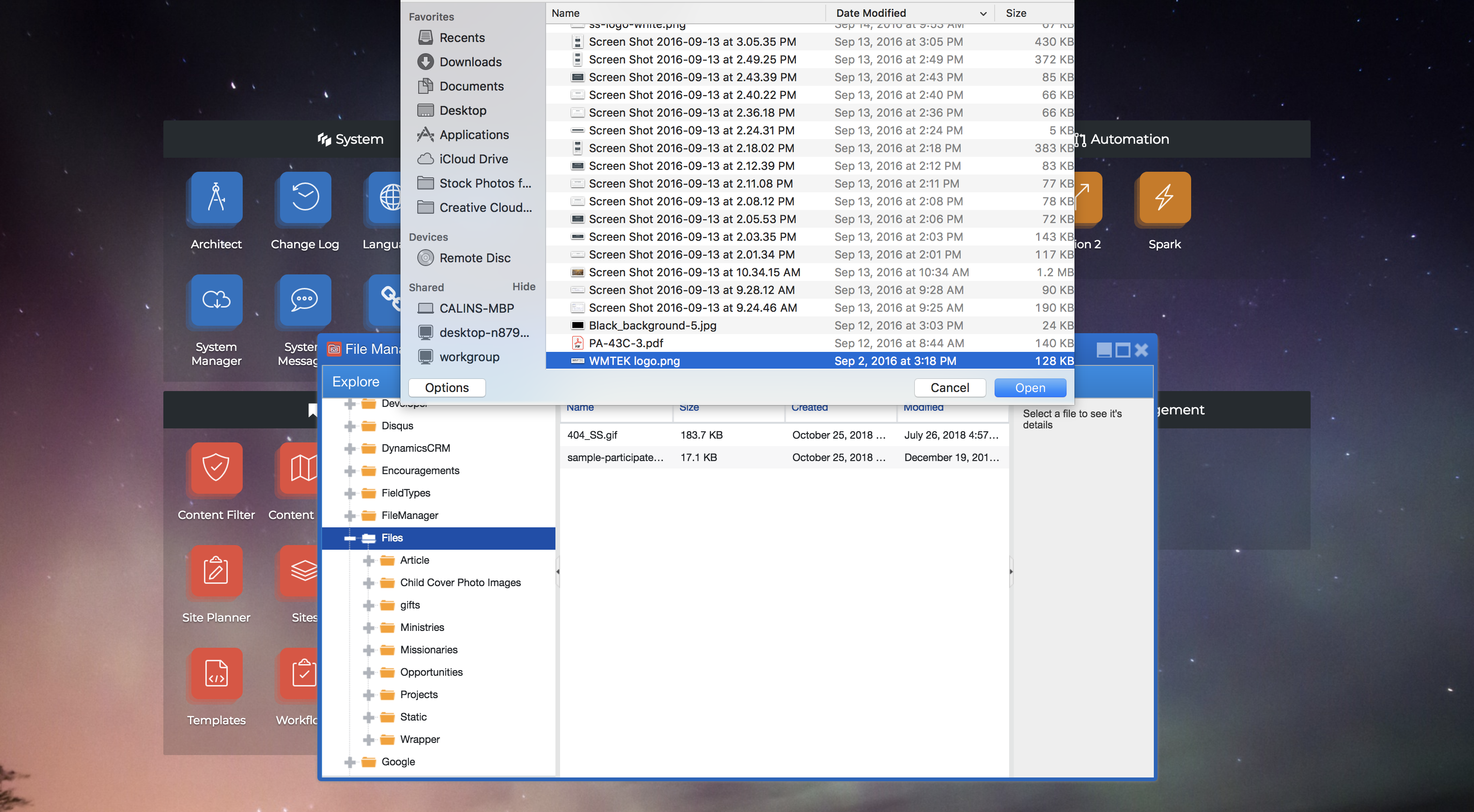
3. Click on a folder you would want to add a file to and click ‘Upload’ or you can drag and drop multiple files at once
If you select upload, choose the file you want to upload from your computer and click ‘Open’. This will now upload the file in File Manager and will be available for use.
Open
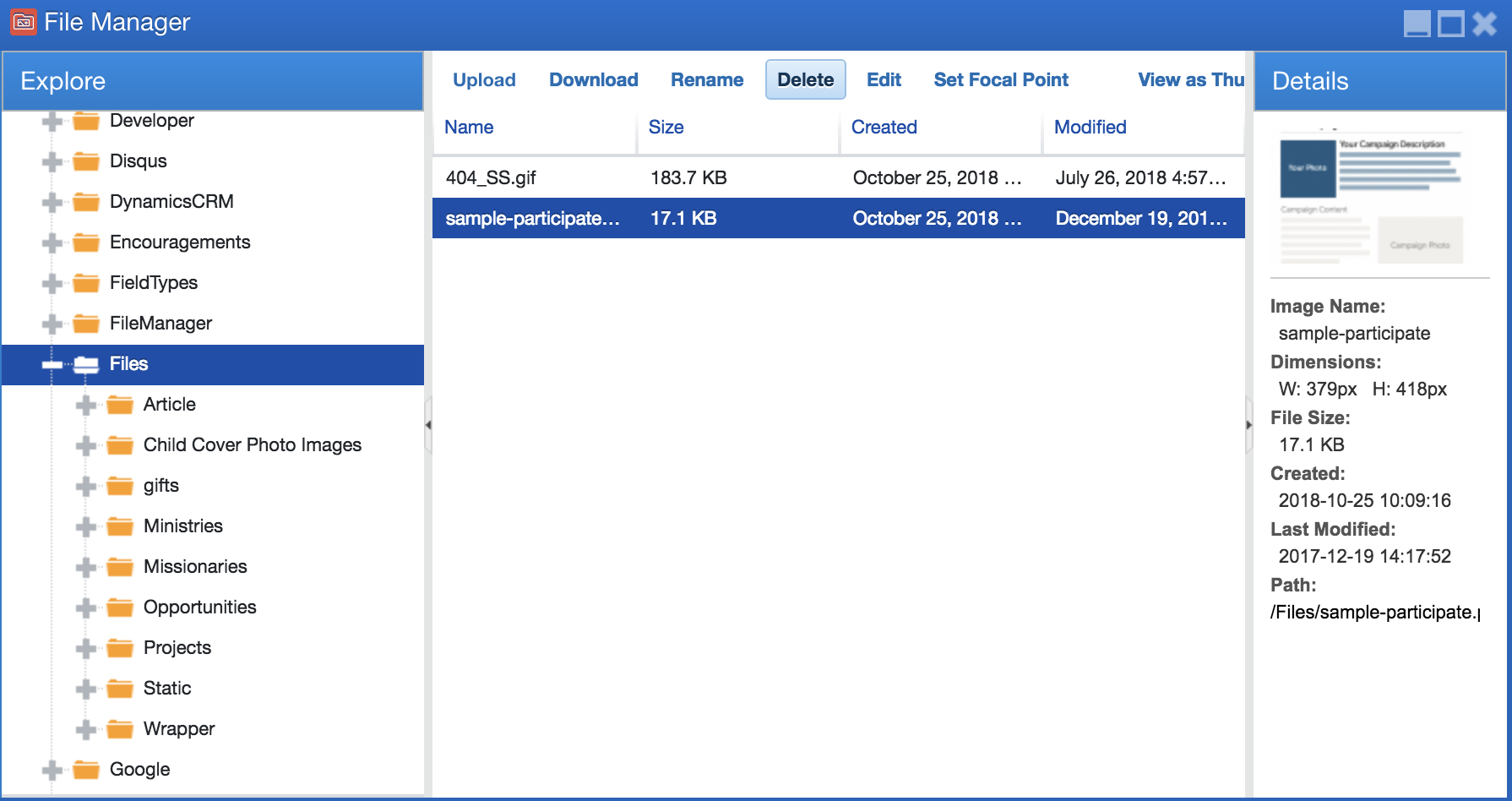
4. To delete a file, right-click on the file and click ‘Delete’. You can also delete it by clicking the file and clicking the ‘Delete’ button found on top of the window.
Learn more at: |
WWW.WMTEK.COM 3690 North US Highway 1 Fort Pierce, FL 34946
772-567-9824
|