
MENU
Content Tagging
Tags are commonly used for filtering in the summary page. This is where a user can go to a page (Ex. Missionaries), and filter a page by the ‘country’ a missionary is serving or by the ‘ministry’. Tags are managed in the ‘Tags’ component in Site Stacker. The “Youtube Experience.”
How to Add Tags
Open
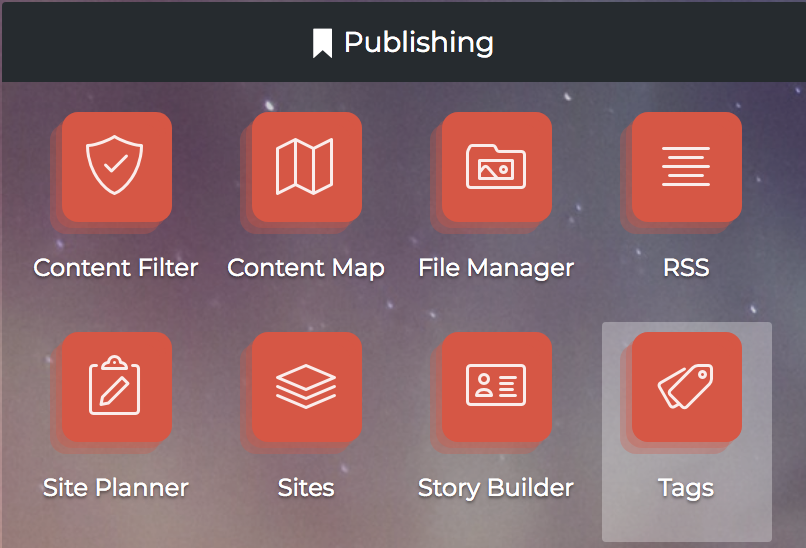
1. Click the ‘Tags’ component in Site Stacker.
Open
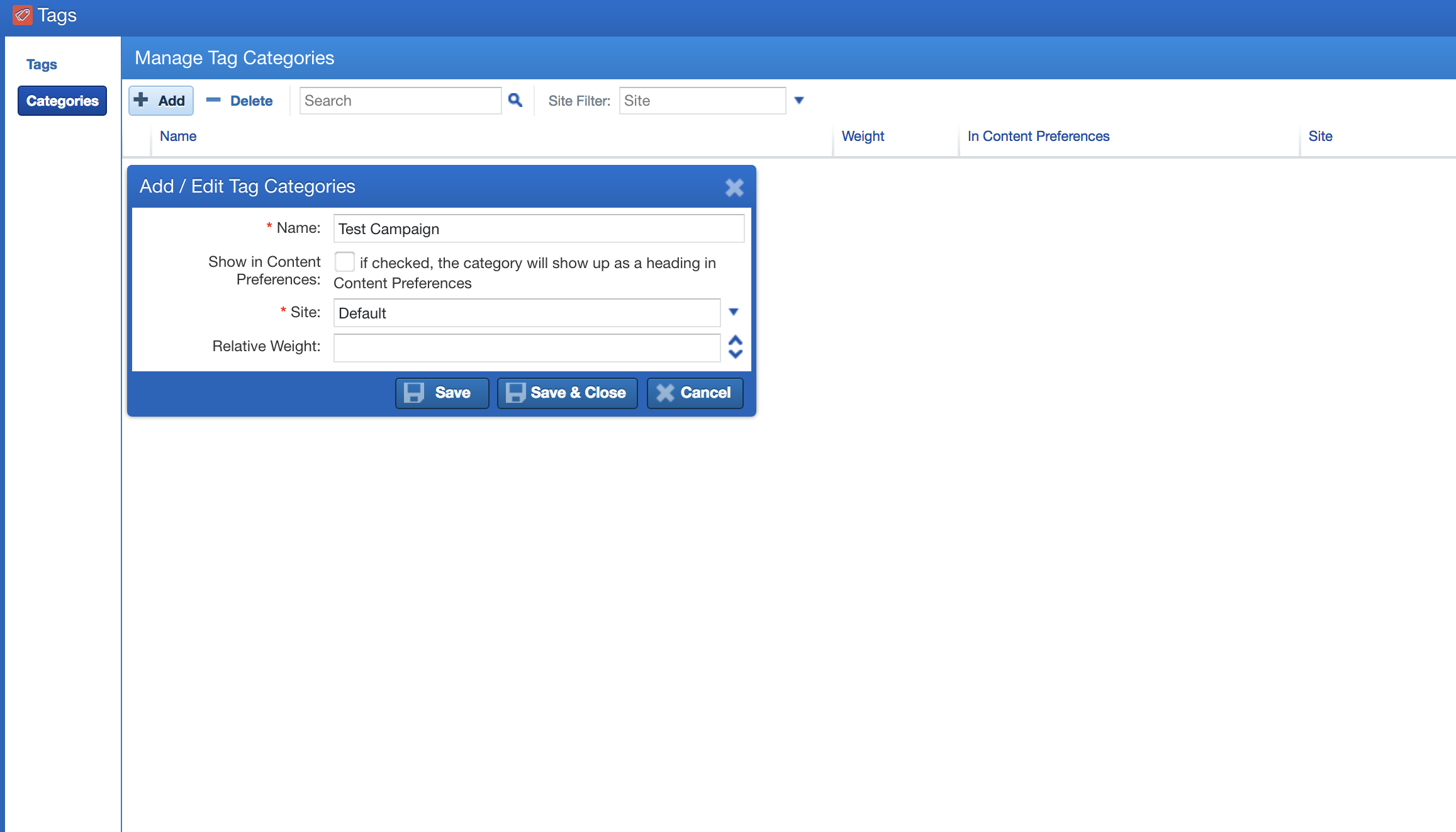
2. We need to add a Category first so click the ‘Categories’ tab. Click the ‘Add’ button and name the category (Ex. Countries). And ‘Save & Close’.
Open
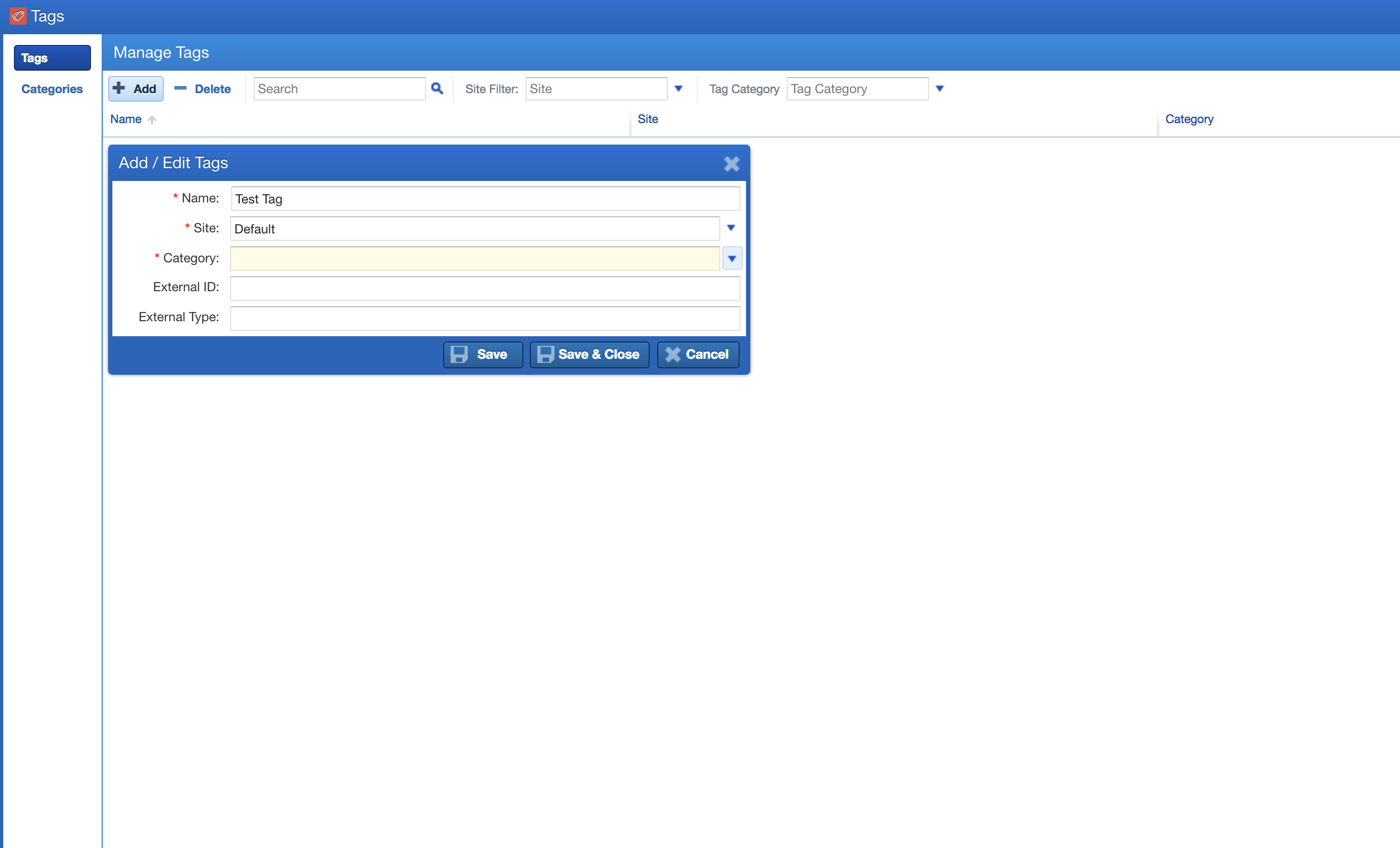
3. Now, click the ‘Tags’ tab and click the ‘Add’ button. Type in the name (Ex. United States). Now choose the category (Countries) and click ‘Save & Close’.
Connecting Tags to Site Planner
Open
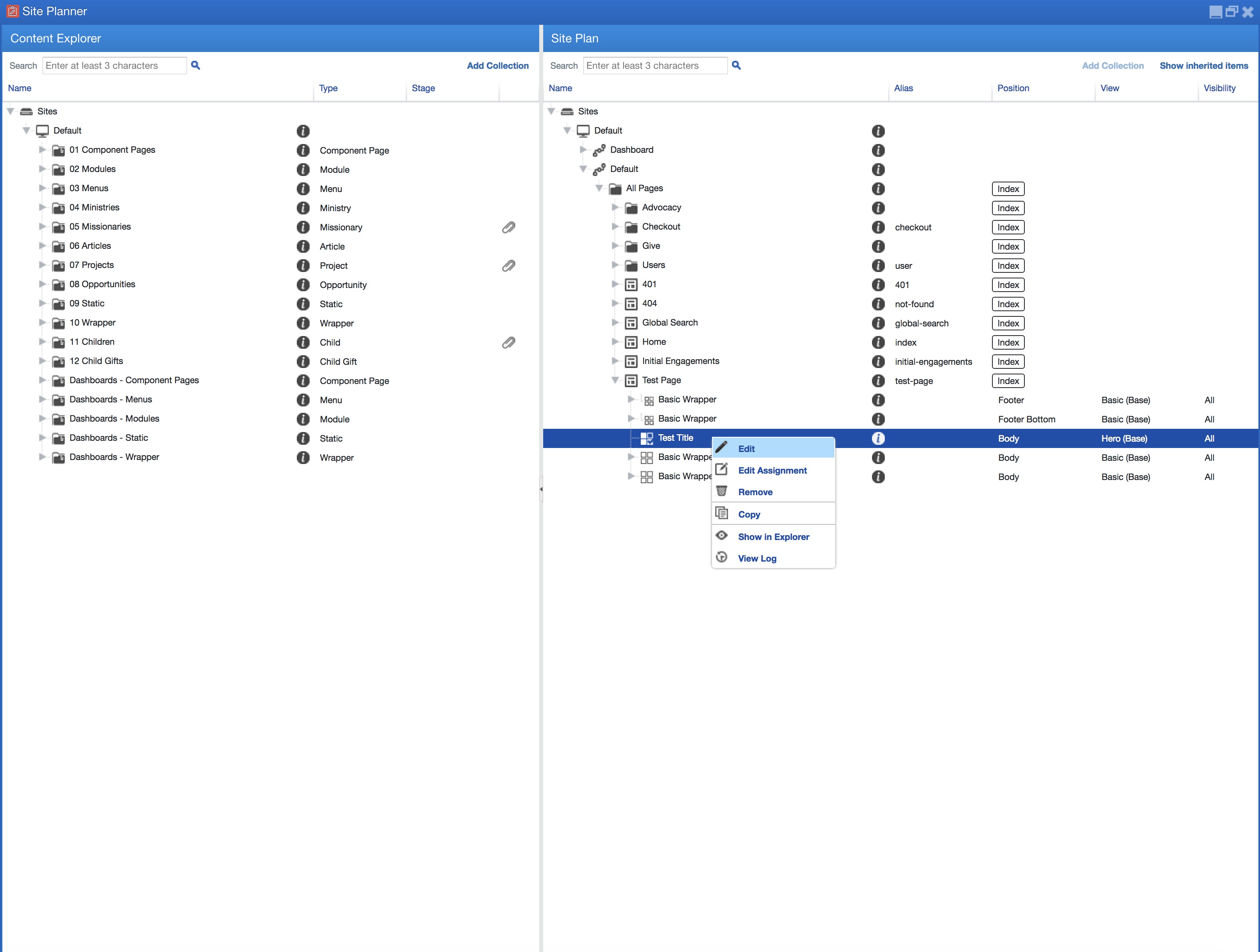
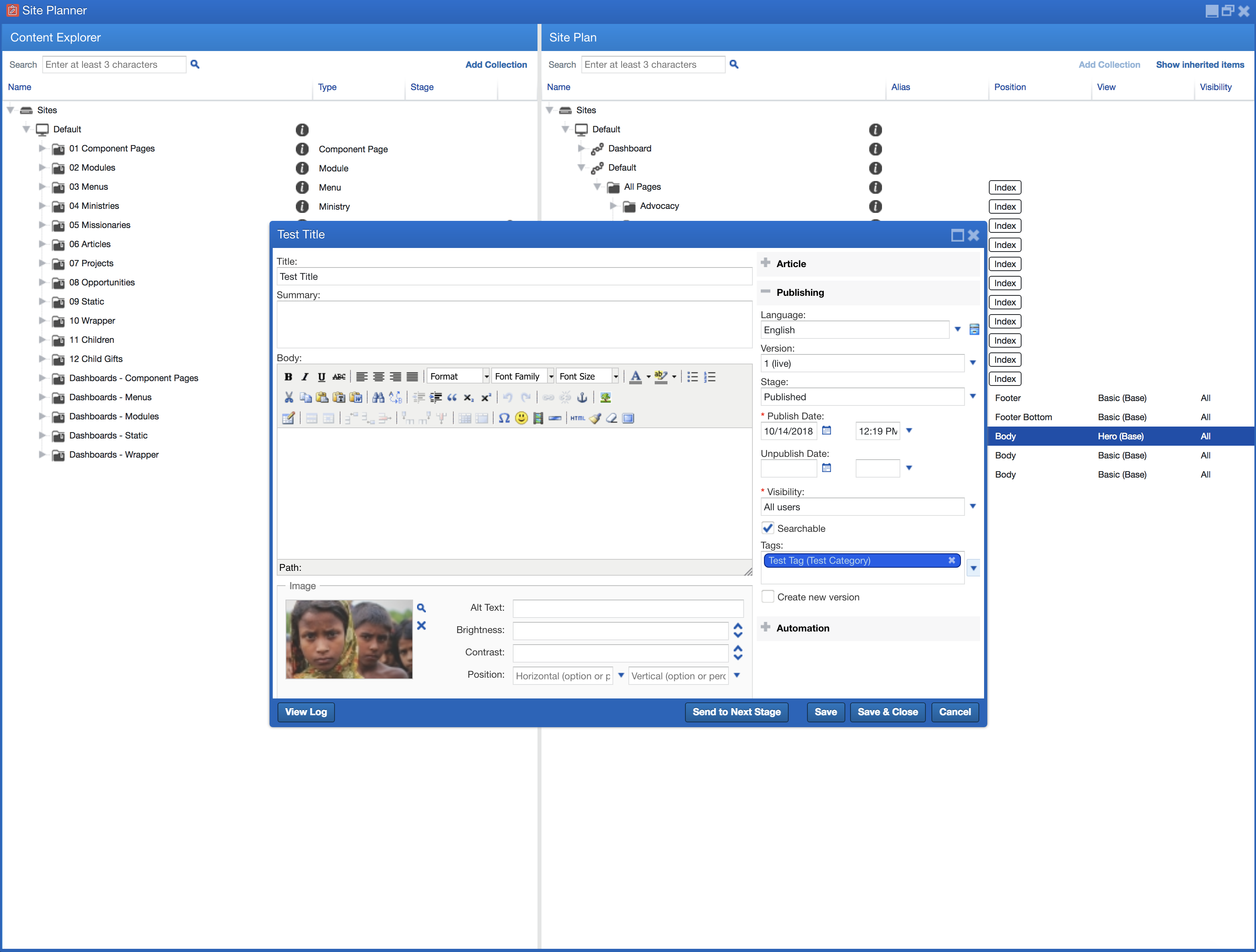
1. In Site Planner, look for the content that needs tagging. Right-click on it and click ‘Edit’.
Open
2. Expand the ‘Publishing’ accordion located on the right side of the window. Click the ‘Tags’ field and choose the tag that will be used for the item. You can tags multiple tags in an item. Once finished, click ‘Save & Close’.
Configuring the Search Module
The Search Module is the tool in Site Stacker that powers the pages with the search field in it. This can be configured to give custom results, like the number of items that will show, or adding filters to make it easier for the user to search for contents.
We will focus more on configuring the filters for the search module. Your installation should already have the search module setup for some of the pages (Missionaries & Projects) but filters haven’t been configured since the filters will depend on what the admin wants in the website. In the admin view, go to Site Planner and follow the steps below:
Open
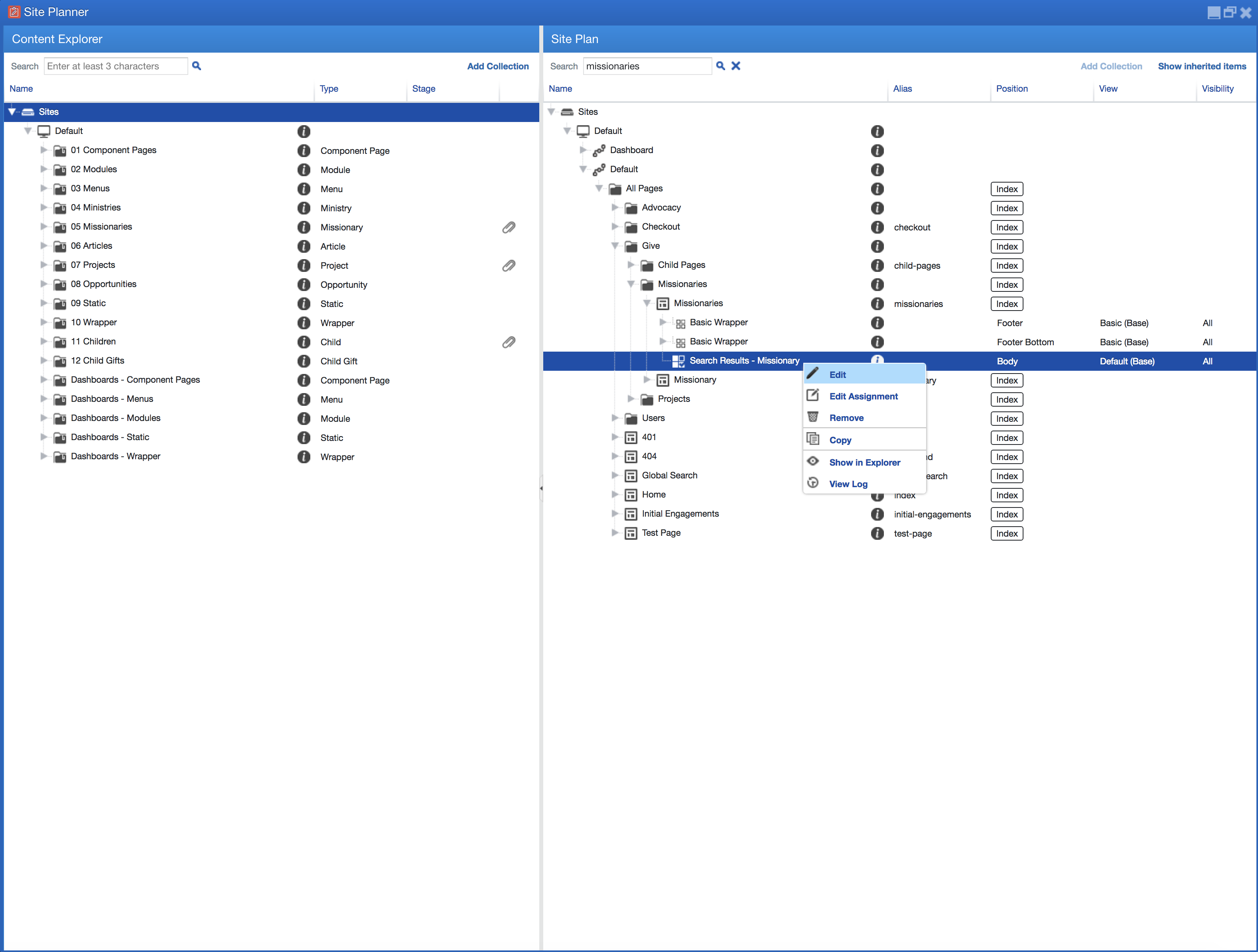
1. In Site Plan, look for the ‘Missionaries’ page. You can use the search field on top for easier navigation. Expand the page and look for ‘Search Results - Missionary’. Right-click on it and click ‘Edit’.
Open
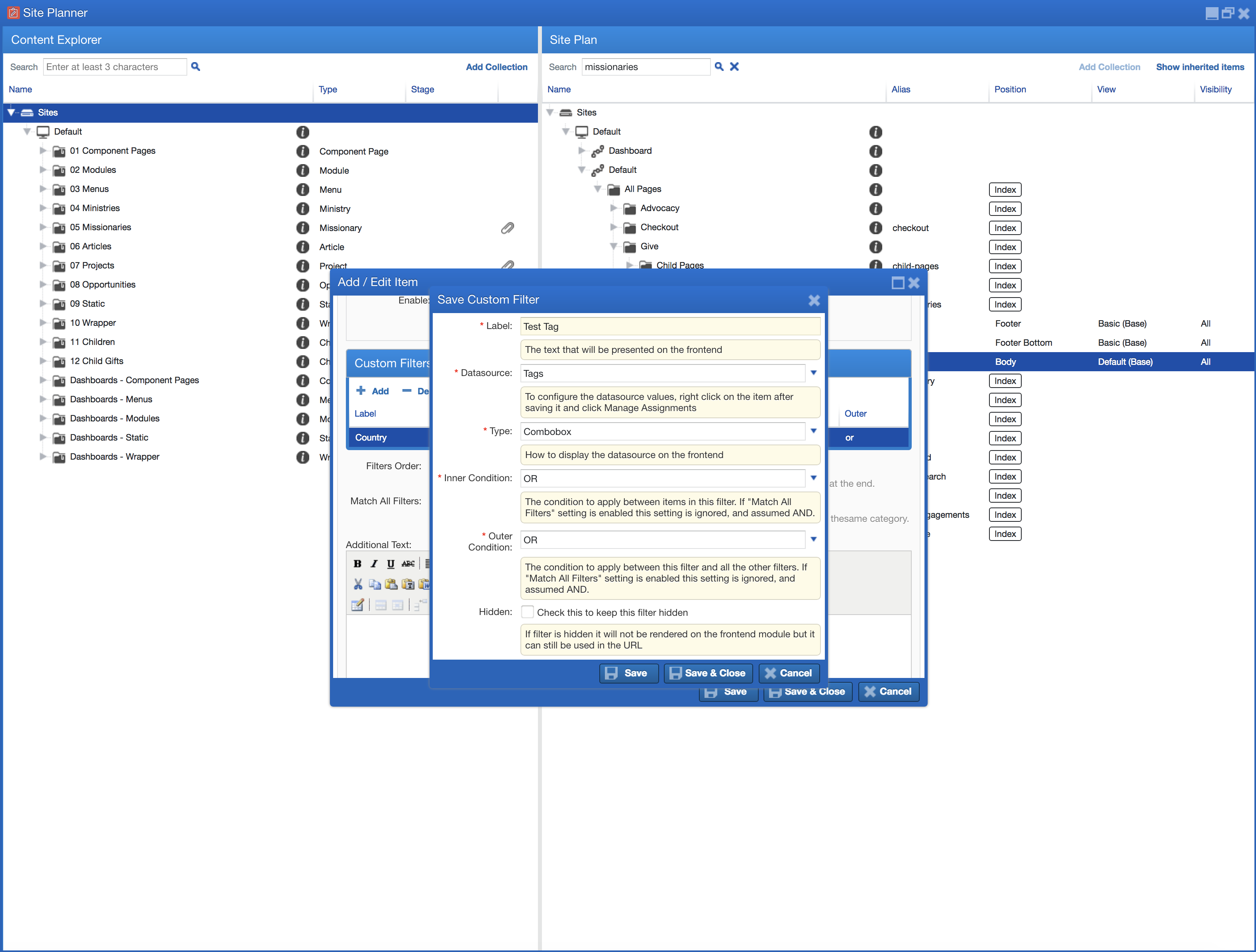
2. Scroll down to the the ‘Custom Filters’ section. Click the ‘Add’ button and type in the filter (Ex. Country), and click ‘Save & Close’.
Open
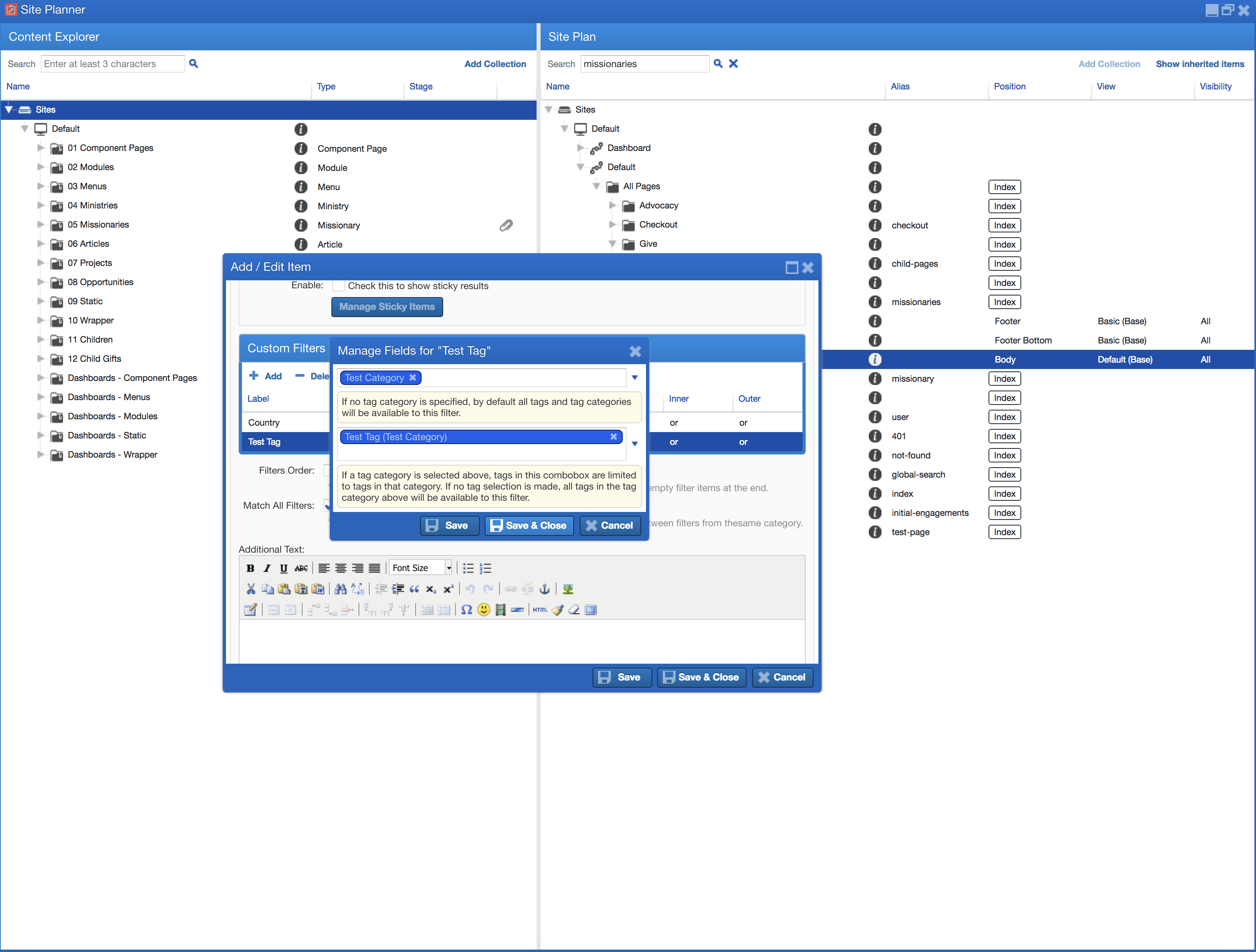
3. Right-click on the added tag and click ‘Manage Assignments’. On the Category field, choose the category the tag is under (Ex. Countries), and click ‘Save & Close’.
Learn more at: |
WWW.WMTEK.COM 3690 North US Highway 1 Fort Pierce, FL 34946
772-567-9824
|